TL;DR: GA4 ChatGPT referral tracking is straightforward once you know where to look, since the referral usually appears as chatgpt.com / referral. In the first hundred words of this guide, you will learn exactly how GA4 reports traffic from ChatGPT, how to build a report that isolates these visits, how to diagnose missing referral data, and how to interpret landing pages to understand why ChatGPT users clicked through.
This article is written for UK website owners who want clear, practical steps to analyse their ChatGPT referral traffic in GA4.
Table of Contents
1.What does GA4 class as ChatGPT referral traffic?
2. How do you find ChatGPT referrals in GA4?
3. How do you build a GA4 Exploration that isolates ChatGPT traffic?
4. Why does GA4 show ChatGPT traffic as referrals?
5. How do you interpret ChatGPT referral data?
6. Can you track ChatGPT referrals more accurately in future?
What does GA4 class as ChatGPT referral traffic?
GA4 logs ChatGPT traffic as a referral source, which means the session has come from an external website that sent the user directly to you. For most sites this appears as:
- Session source:
chatgpt.com - Session medium:
referral
In some cases you may see variations like openai.com or chat.openai.com, although UK websites typically report chatgpt.com. The source depends on how the user accessed your link inside ChatGPT, for example from a shared chat or a direct link response.
How do you find ChatGPT referrals in GA4?
You can locate these sessions inside standard GA4 reports as long as you know where to look.
Step 1: Open the Traffic Acquisition report
Go to Reports, Acquisition, Traffic acquisition. GA4 will show a breakdown of how users arrived on your site.
Step 2: Filter for the ChatGPT source
Use the Session source filter and enter chatgpt.com. This reveals all sessions that came from ChatGPT within your selected date range. The default range is not always helpful, so adjust it to match the period when you expect activity.
Step 3: Add a secondary dimension
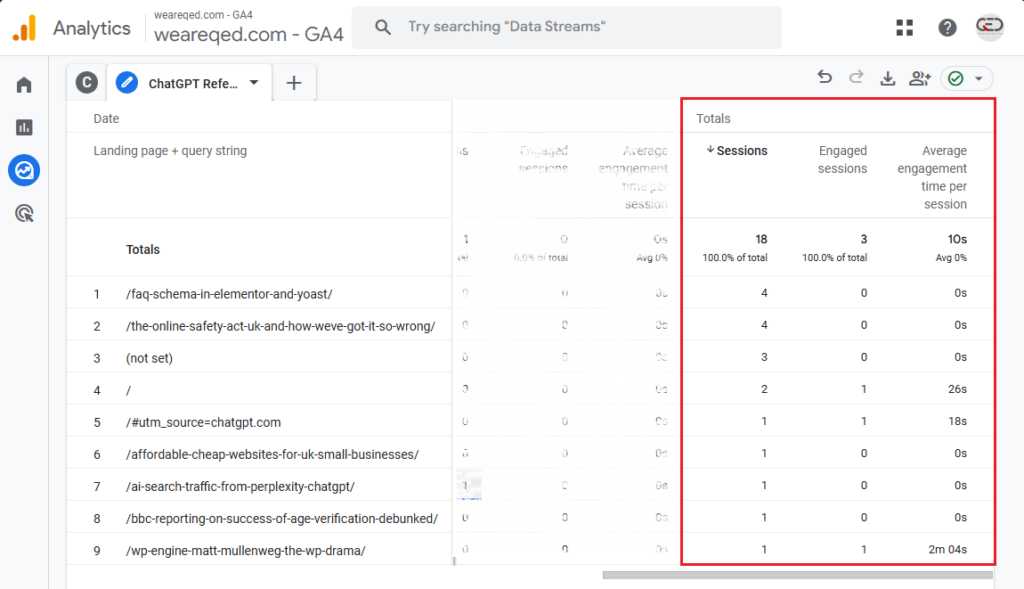
Choose Landing page plus query string. This lets you see exactly which page visitors landed on. Most site owners find this is the only reliable clue to understanding what ChatGPT recommended.
Step 4: Check engagement metrics
Look at engaged sessions, engagement time, and conversions. This helps you understand how people behave once they arrive from ChatGPT, which can differ from organic or social traffic because the user has usually clicked a link recommended inside an answer.
How do you build a GA4 Exploration that isolates ChatGPT traffic?
Explorations allow much deeper analysis, which is useful if you want to monitor trends or compare ChatGPT traffic with other channels.
Step 1: Create a new Blank exploration
Go to Explore then select Blank.
Step 2: Add the right dimensions
Import these dimensions:
- Session source
- Session medium
- Landing page plus query string
- Date
Step 3: Add useful metrics
Include:
- Sessions
- Engaged sessions
- Average engagement time per session
- Conversions
Step 4: Build your table
Rows: Landing page plus query string
Values: Sessions, Engaged sessions, Average engagement time
Step 5: Apply a source filter
Use a regex filter that matches only ChatGPT referrals:(chatgpt\.com)
If you want to prepare for possible future variations, use a broader expression:(chatgpt\.com|chat\.openai\.com|openai\
.com|gpt\.openai\.com|t\.openai\.com)
Step 6: Set the date range
In Explorations the date selector sits in the top right corner of the interface. Set it to the last thirty days or a custom range that covers known activity. GA4 does not pull in the property wide date range automatically.
Why does GA4 show ChatGPT traffic as referrals?
ChatGPT behaves like any other external website. When a user clicks a link in a ChatGPT answer or a shared conversation, their browser follows the URL and passes a referrer header. GA4 then records this as referral traffic. There is no extra tracking layer and no additional parameters, which means you only see the source and the landing page.
This has two consequences.
You cannot see the original ChatGPT prompt
OpenAI strips conversation identifiers to protect user privacy. You can only infer the topic based on which page the user landed on. If the first page is a case study, the ChatGPT conversation probably discussed that topic.
You may see incomplete data
If the user has privacy settings that block referral headers, GA4 may record the visit as Direct traffic. This is normal across all channels, not just ChatGPT.
How do you interpret ChatGPT referral data?
Once you have isolated your ChatGPT traffic, the real value comes from analysing behaviour.
Look at landing pages
The landing page usually reveals the subject of the original ChatGPT conversation. For example, if most referrals hit a page about sustainable web design, ChatGPT answers that mention your environmental credentials are likely performing well.
Compare engagement with other channels
ChatGPT visitors often spend more time on site because they have arrived with clear intent. If you provide helpful content that matches the topic ChatGPT referenced, you usually see higher engagement rates.
Identify new content opportunities
If certain pages receive repeated ChatGPT referrals, expand those pages or create related articles. This strengthens topical authority and increases the chance of receiving more referrals.
External guidance from UK sources, such as the Information Commissioner’s Office, confirms that referral data is classed as standard analytics data, so it does not require special consent beyond your usual analytics cookie permissions.
Can you track ChatGPT referrals more accurately in future?
Yes, although only through your own link sharing. If you share URLs inside ChatGPT conversations, use UTM tags such as:
?utm_source=gpt&utm_medium=chat
This makes later referrals identifiable in GA4 and helps you understand how your own shared content performs.
Adding a field such as “How did you find us” to contact forms also helps confirm whether visitors discovered your site via ChatGPT.
Conclusion: GA4 ChatGPT referral
GA4 ChatGPT referral tracking is simple once you know how GA4 labels these visits. Use the standard Traffic acquisition report to locate the exact source, then create an Exploration for deeper analysis. Review landing pages closely to infer what ChatGPT was recommending, compare engagement across channels, and use UTM parameters if you want more precise tracking in future. With a clear process in place, you can understand and respond to the growing role ChatGPT plays in driving traffic to your website.